 SellReel
1. One page: the editor
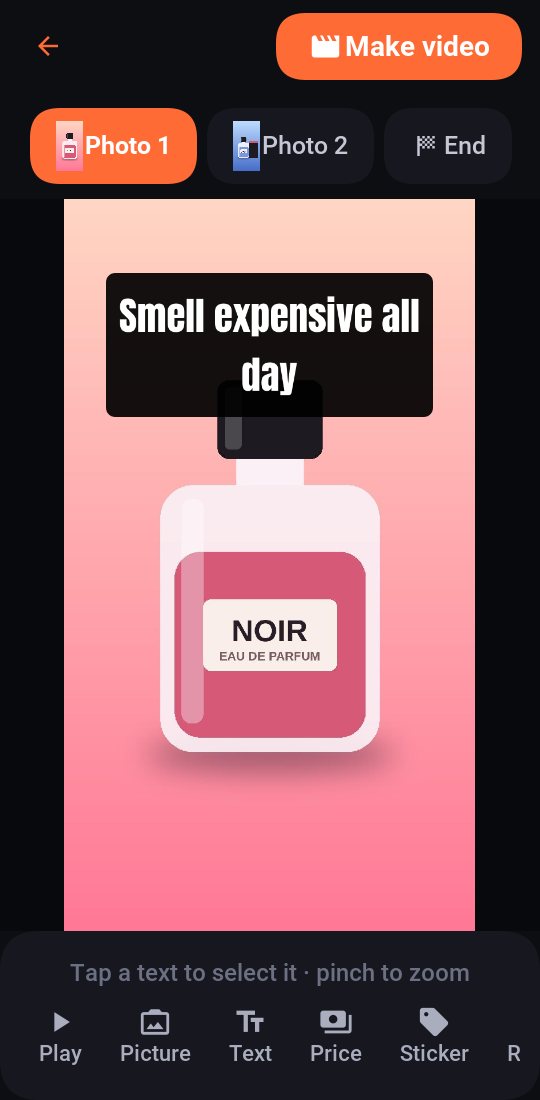
SellReel opens straight into the editor. Everything happens on this one page, and you see your video as it will look.
- At the top left: the ⋮ menu and the folder for My videos. At the top right: Make video, which makes the finished video file.
- Clips across the top: Add first, then Photo 1, Video 2… and End for the end card. Tap a clip to work on it. Each text belongs to the clip it's on.
- On the video: with no texts yet, tap the video to write one. Drag a text to move it, pinch to resize, twist two fingers (or drag the blue dot) to turn it, and tap a selected text to change the words. The red cross deletes it, and Undo brings it back.
- Zoom in: pinch on empty space to zoom the canvas, for careful placing.
- Tools along the bottom: swipe the row to see them all. Tap a tool to open it; tap it again to close it.
The tools, in order
The ones you use every time come first:
- Play plays the whole video right there, with music. A progress line shows while it's being prepared.
- AI ad, Text, Price, Music and Templates.
- Trim for the video on screen, or Studio for the photo on screen: only the one that fits the clip shows.
- Captions, Look, Sticker and React.
- Further along: Link, New stock, Voice, Frame, Video (shape and size), Picture and Brand.
Your work is saved as you go.
2. Add your clips
Every video starts with your photos and short videos of the product.
- Tap Add, the orange chip at the start of the clips along the top.
- Choose Videos from my phone or Photos from my phone (you can pick several at once), Record a video or Take a photo.
- They play in the order along the top. To move or remove one, tap it, then tap it again: choose Move earlier, Move later or Remove. A removed clip goes with its texts; Undo brings them back.
Free videos hold 2 videos and 2 photos; Pro holds 10 of each.
Tip: photos get a slow zoom, so a few good photos already make a lively video. Shoot in daylight, close to the product. A messy background? Make it a studio photo.
3. AI ad
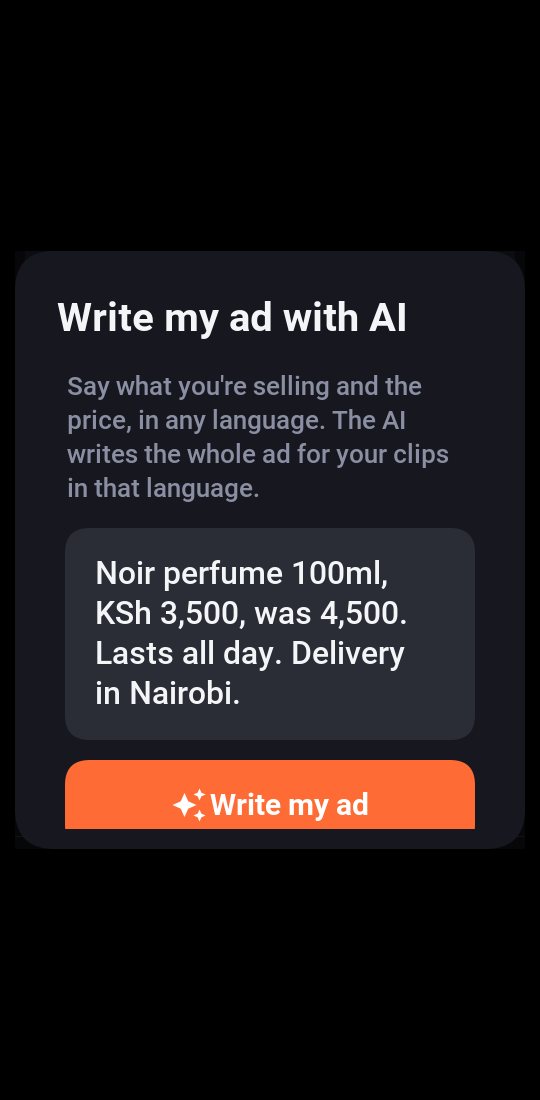
Say what you sell. The AI looks at your clips and writes the whole ad.
- Add your clips, then tap AI ad along the bottom.
- Say what you're selling, the price, and anything buyers should know, for example "Noir perfume 100ml, KSh 3,500, was 4,500. Delivery in Nairobi."
- Tap Write my ad and wait a few seconds.
The AI writes:
- a hook on the first clip that stops the scroll,
- words for each clip, about what that clip shows,
- the price tag, with the old price crossed out when you give one,
- reactions and pointers where they fit, and a news ticker with Pro,
- the voice-over, and the end card's headline and call to action,
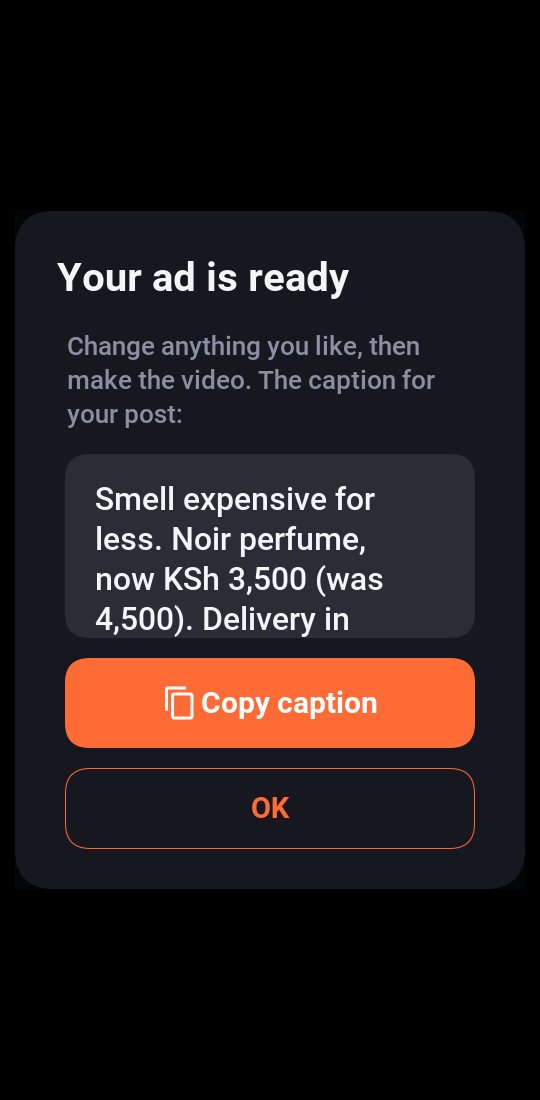
- a caption with hashtags for your post, and the music.
It all appears on your video. Change anything you like, then make the video.
Three versions
The AI also writes two other openings: one that leads with the price, one with the problem it solves, one with proof. Tap Make 3 versionsPro to make a video of each, post them, and see which one sells.
Any language
Write in English, Swahili, Sheng, French or any language: the ad comes back in the same language, the same way you write it.
The caption: tap Copy caption, or just share the video later: the caption is copied for you, ready to paste in your post.
Your first 3 AI ads are free; Pro writes up to 30 a day. It needs the internet. If your video already has texts, the AI's ad replaces them (it asks first).
4. Templates
A finished design in one tap, or your own, saved for next time.
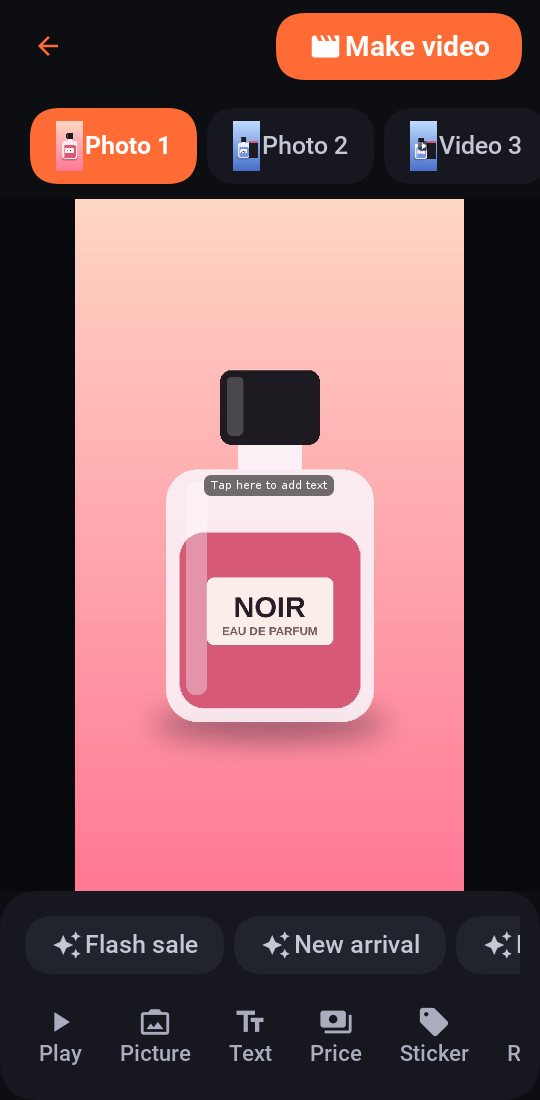
- In the editor, tap Templates.
- Tap a ready-made one (Flash sale, New arrival…) to put its texts, look and music on your video. It asks first if your video already has texts.
- Made a design you like? Tap Save current, give it a name, and it appears in the row for your next videos. Tap one of your own to use it or delete it.
Two ready-made templates are free; all 11 come with Pro. Some also set how long each clip plays and how it moves, an effect, or beat zoom: Fast cuts, Unboxing, Before and after, Luxury, Customer favourite and 3 reasons to buy.
Tip: save one template per kind of post (new stock, sale, delivery day) and every video takes seconds.
5. New stock video
Selling several products? One video shows them all, each with its name and price.
- Add a photo or video of each product, in the order you want them.
- Tap New stock along the bottom.
- Type a headline (New stock to start), and under each product its name and price. Leave a box empty to show nothing there.
- Choose how long each product shows: 2, 3 or 4 seconds. Tap Put them on my video.
The headline goes at the top of the first product, and each product gets its name and a price tag. Open it again next week to change the prices: the names and prices you typed are filled in. It's all made on your phone.
Tip: make each product a studio photo first, and your stock list looks like a catalogue.
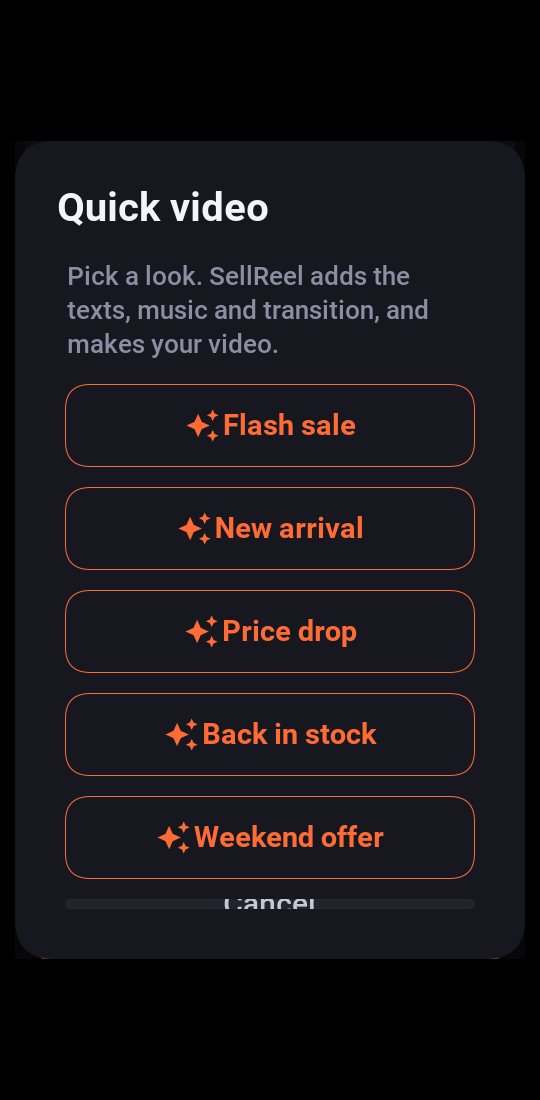
6. Quick video
Short on time? Pick a look and the video is made for you.
- Add your clips, then open the ⋮ menu and tap Quick video.
- Pick a look: Flash sale, New arrival, Price drop, Back in stock or Weekend offer.
- Type the price when asked. SellReel adds the texts, music and transition, and makes the video.
The first two looks are free; the others come with Pro.
7. Texts and their style
Everything for texts is under Text.
- Tap Text. With no text on the video yet, it asks for your words straight away. Tap a suggestion to use your shop's name or contact.
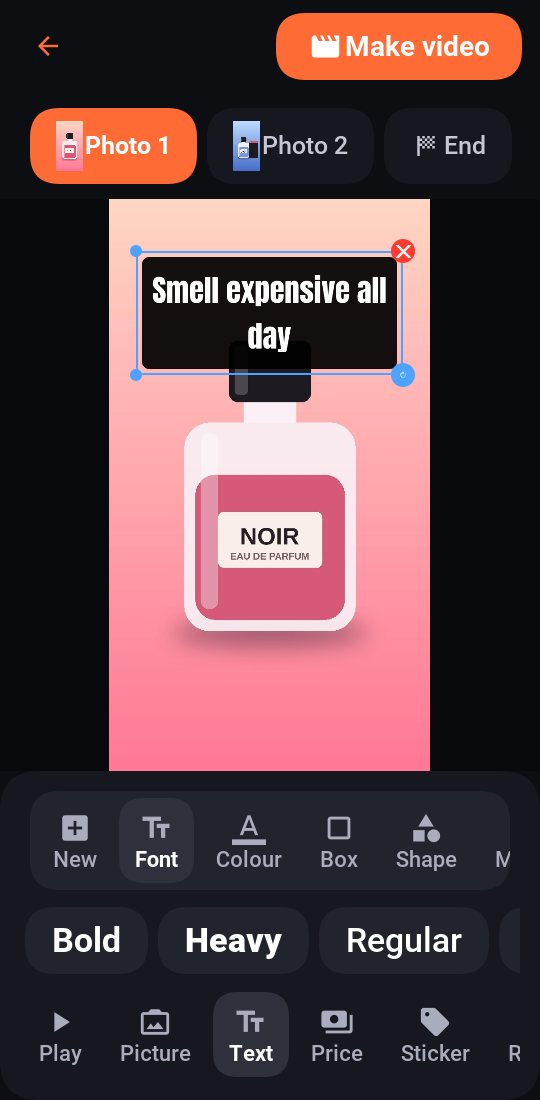
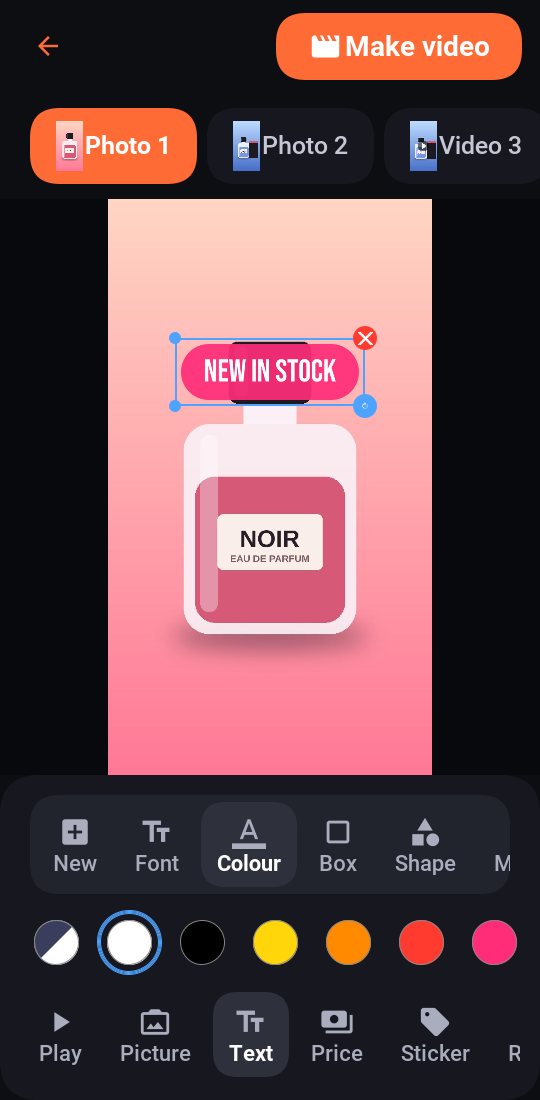
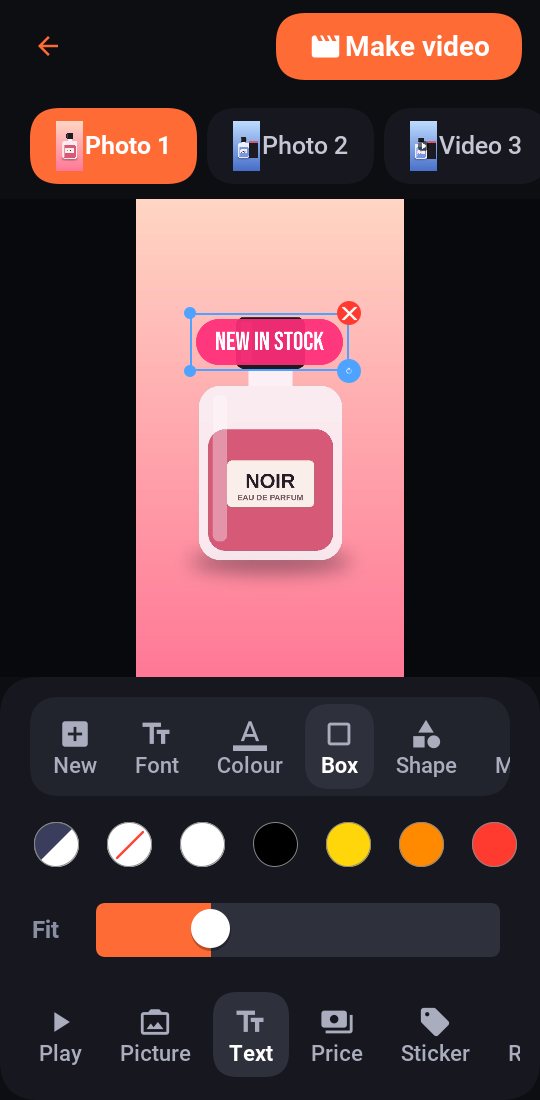
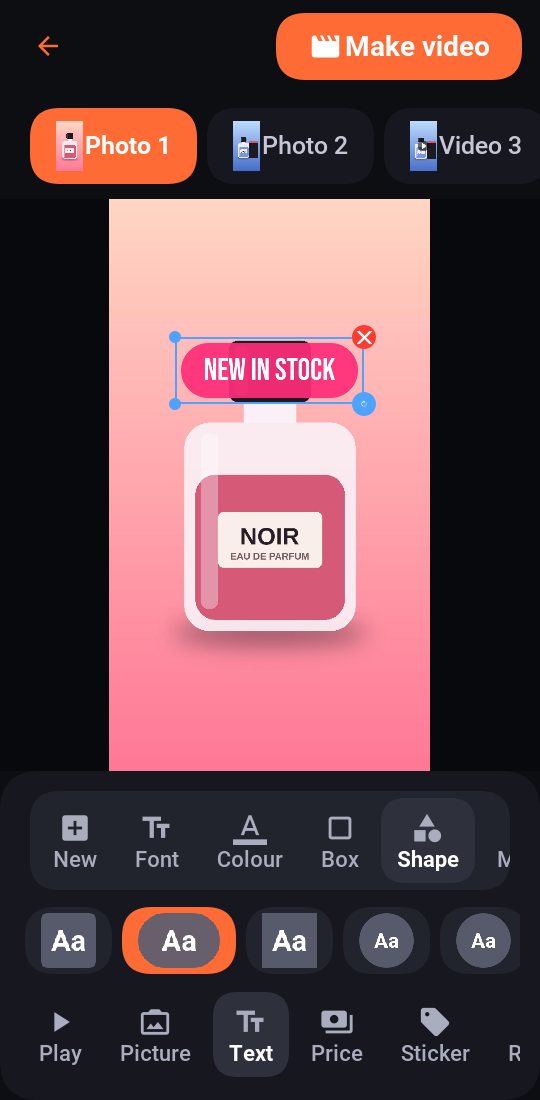
- Tap a text on the video to select it. The tray above the tools has New (another text), Font, Colour, Box, Shape, Motion, Timing and Size.
- Pick a tool and its choices appear under it. The text changes as you tap.
- Font: 14 fonts, from bold display fonts like Bebas and Anton to handwriting like Pacifico.
- Colour: the text's colour. Auto picks one that stands out on your picture.
- Box: a box behind the text in any colour, or none. Fit makes the box snug or roomy.
- Shape: the box's shape: rounded, pill, square, oval, circle, speech bubble, price tag, starburst, ribbon, slanted, outline or highlight.
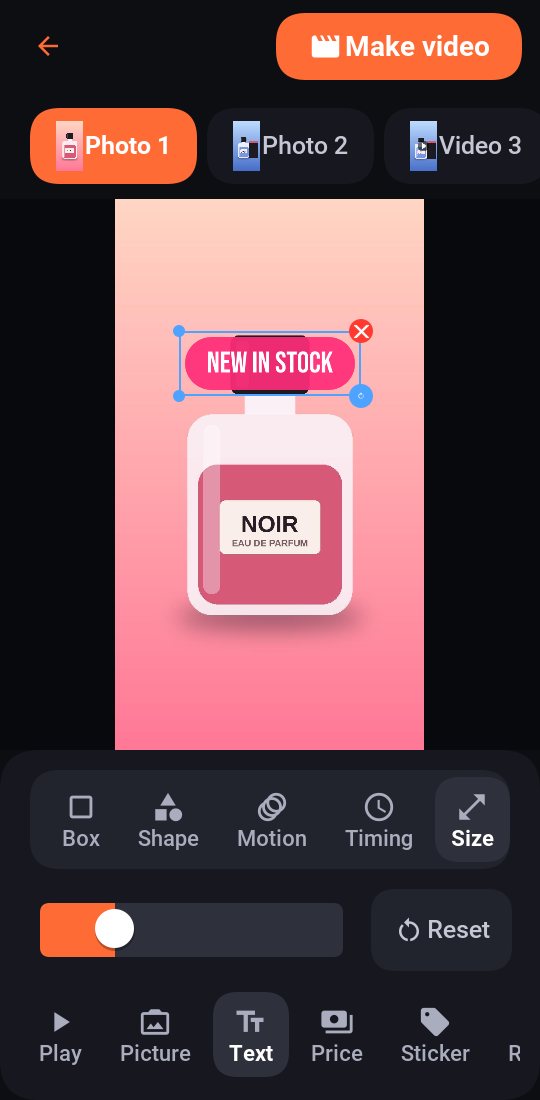
- Size: a slider, the same as pinching. Reset puts it back.
Your brand kit sets the colours and font new texts start with.
8. Motion and timing
Make texts move, and choose exactly when they show.
Motion
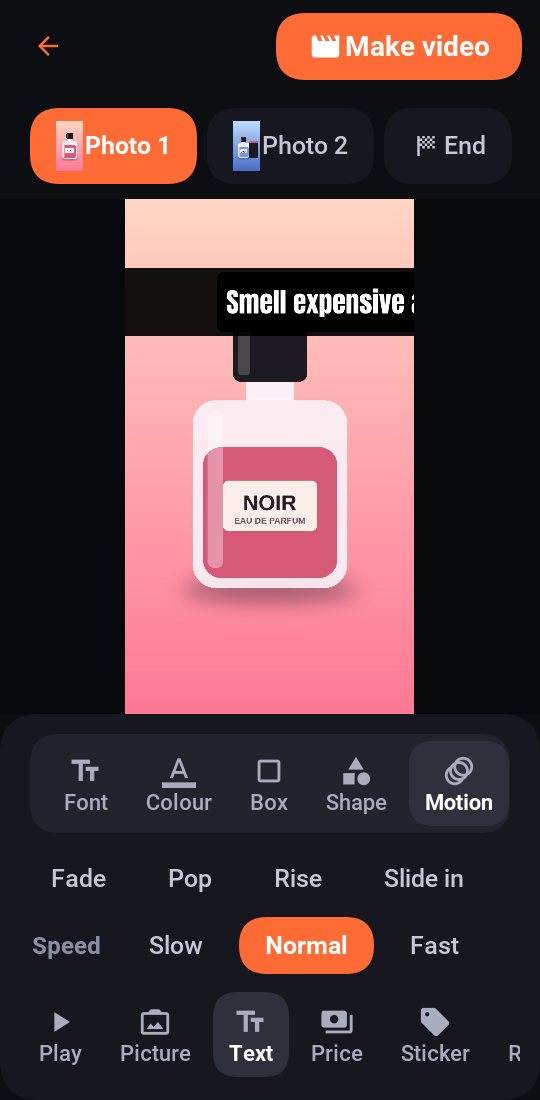
Under Text › Motion, pick how the text comes on: Fade, Pop, Rise or Slide in. Picking one plays it on the video. Two keep moving the whole time:
- Roll upPro scrolls the text up the screen like film credits.
- TickerPro slides the text across a band, like TV news, again and again. It stays on one line however long.
For these two, a Speed row appears: Slow, Normal, Fast or Very fast.
Timing
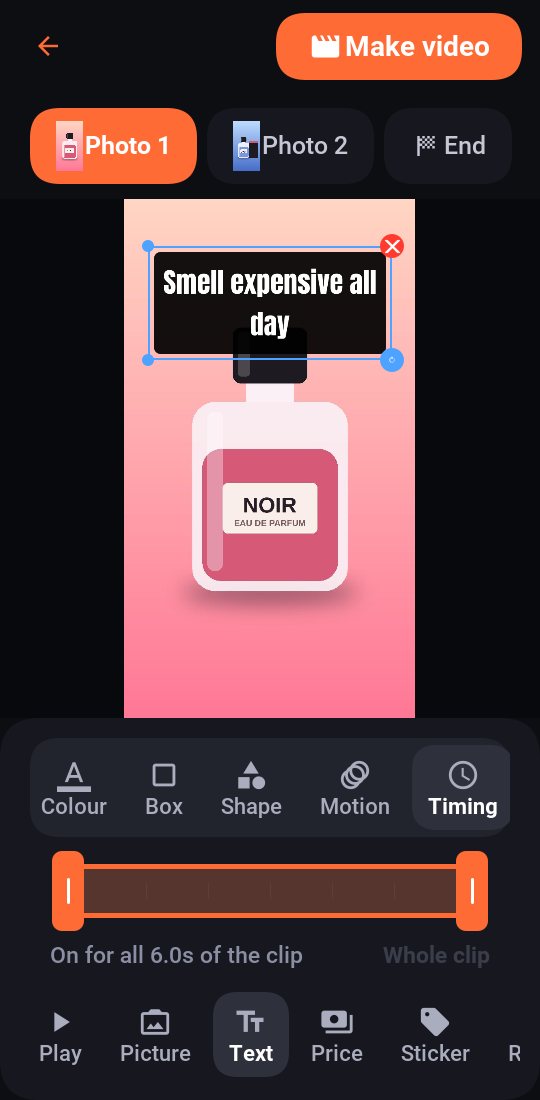
Every text and reaction shows for its whole clip, unless you choose. Under Text › Timing, drag the two ends of the bar to set when it appears and goes, for example "Shows 1.0s to 2.5s of 6.0s". Whole clip puts it back.
Tip: show the price a moment after the product, and a heart right when it appears. A video that changes every second or two keeps people watching.
9. Price tags
Show the price, and the deal.
- Pick the clip, then tap Price.
- Type the price with its currency, for example KSh 3,500. If it's on offer, add the old price too.
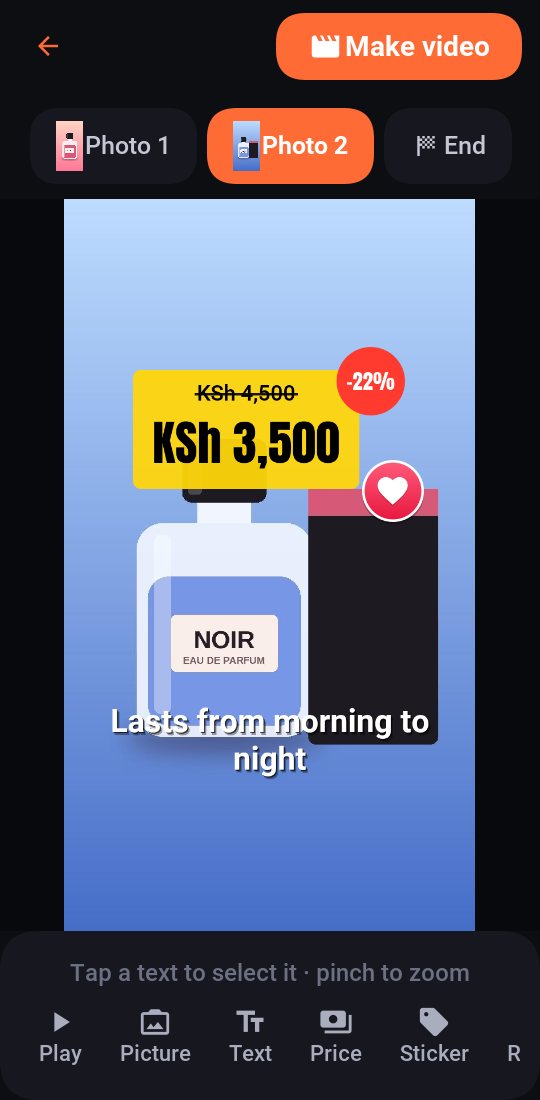
The old price is crossed out and the saving shows as a badge, like −22%. The tag pops in. Drag it, resize it, and style it with the text tools. Tap it to change the price.
Tip: SellReel remembers your currency, so the next price starts with it.
10. Stickers
Ready-made labels that sell.
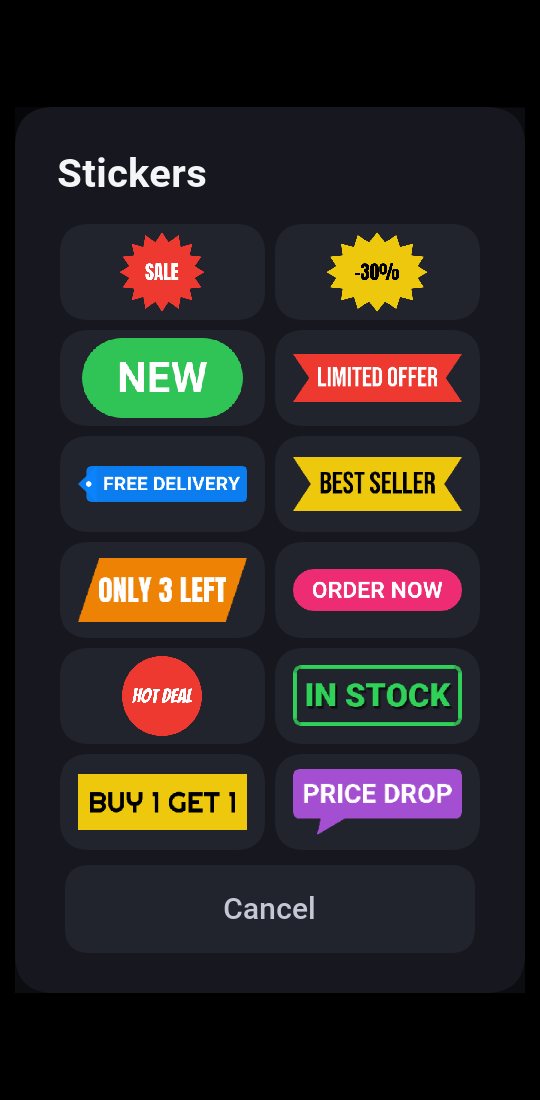
Tap Sticker and pick one: SALE, −30%, NEW, LIMITED OFFER, FREE DELIVERY, BEST SELLER, ONLY 3 LEFT, ORDER NOW, HOT DEAL, IN STOCK, BUY 1 GET 1 or PRICE DROP.
Each comes in its own colours and shape, and pops in. It's a text like any other: drag it, resize it, tap it to change the words, or restyle it.
11. Reactions and pointers
Add life, and show buyers where to look.
- Tap React.
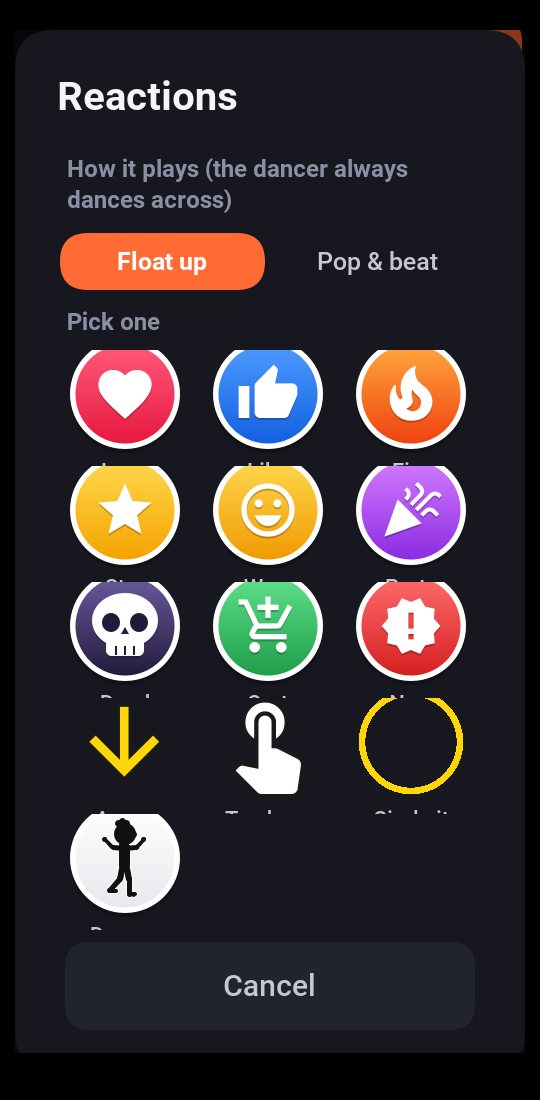
- Choose how it plays: Float up (a stream rising like live reactions) or Pop & beat (pops in and pulses).
- Pick one: Love, Like, Fire, Star, Wow, Party, Dead (the laughing skull 💀), Cart or New.
- Pointers point at the product: an Arrow, a tapping hand (Tap here), or a ring (Circle it). They pulse to catch the eye.
- The dancerPro dances across the screen. Drag it up or down to choose its height.
Reactions move and resize like texts, and take Timing: put a heart exactly on the moment the product appears. Tap one to change it.
Love, Like, Star and Arrow are free; the others come with Pro.
12. Captions of what's said
Someone talking in your video? SellReel writes what they say on screen, in time with the words.
- Tap Captions along the bottom.
- Tick Show what's said in my videos, and Keep the videos' own sound so buyers hear it too. Tap Done.
- The phone listens to each video, then the captions show as it plays. Tap Play to see them.
Heard a word wrong? Open Captions again and tap Fix beside that video. Listen again starts over.
Your videos are listened to on your phone: nothing is uploaded. It works on iPhone, and on Android 13 and later with offline speech recognition, in a language the phone understands offline. The first time, the phone asks to allow speech recognition (on Android, the microphone: only the video is heard).
13. Trim, speed and freeze
For video clips: which part plays, and how.
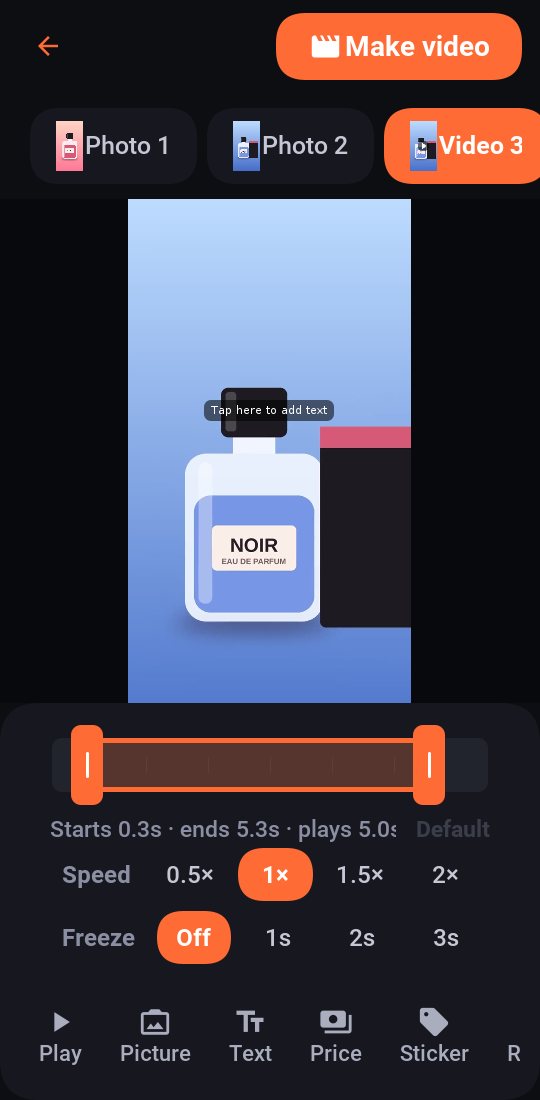
- In the editor, tap the video clip at the top, then Trim.
- Trim: drag the two ends of the bar to choose where the clip starts and stops, or drag the middle to slide the chosen part along. The picture follows your finger.
- Speed: 0.5× slow motion, 1×, 1.5× or 2×.
- Freeze: hold the last frame for 1, 2 or 3 seconds, with a slow zoom: a good moment for the price.
Default undoes the trim. Photos have nothing to trim, so the tool shows only for videos.
Tip: keep each clip short, 2 to 4 seconds. With Cut clips to the beat on, clip changes land on the music's beat.
14. Studio photoPro
A product photo taken on a bed, a floor or a counter becomes a clean studio shot.
- Tap the photo along the top, then Studio along the bottom.
- Pick a background: White, Studio grey, Warm, Brand colour (your brand kit's colour) or Blurred room.
The phone cuts your product out of the photo, puts it big in the middle of the new background, and adds a soft shadow under it. Try the other backgrounds: after the first, they're instant. Original puts your photo back as it was. Its texts stay where they were.
It's done on your phone: your photo isn't uploaded. It needs an iPhone with iOS 17 or later, or an Android phone with Google Play services.
Tip: the product cuts out best on its own, in the middle of the photo, in good light. Save the result as a picture for Marketplace or WhatsApp with Picture.
15. Frame, blur fill and moves
Choose which part of a clip shows.
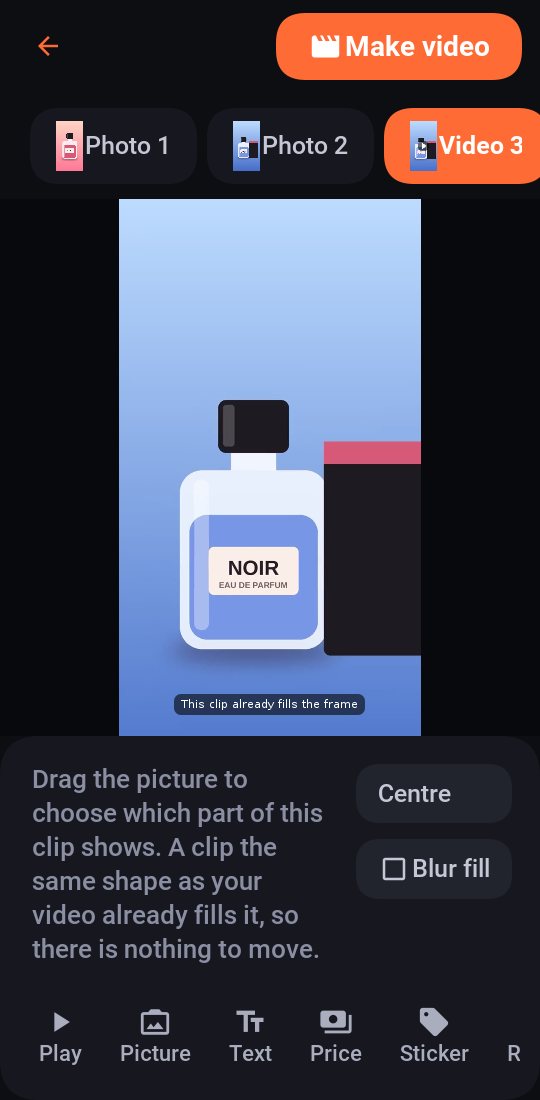
When a clip isn't the same shape as your video (a wide photo in a vertical video, say), only part of it fits. Tap Frame, then drag the picture to choose the part that shows. Centre puts it back in the middle.
Blur fill shows the whole picture instead, with a soft blurred copy of it filling the space around it: nothing is cut off.
Move gives the clip its own slow zoom or pan: Zoom in, Zoom out, Pan left, Pan right, Pan up or Still. Videos can move too. Photos left on Auto take turns at the usual zooms. Tap Play to see it.
16. The look and effects
Tap Look to style the whole video. Scroll the panel for everything.
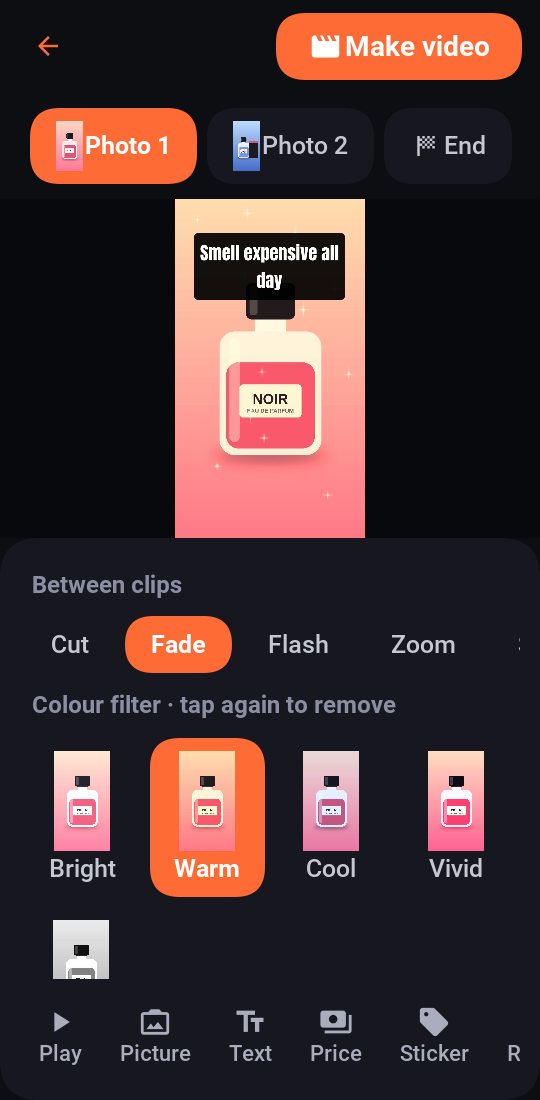
- Between clips: Cut, Fade, Flash, Zoom or Slide.
- Colour filter: Bright, Warm, Cool, Vivid or black and white.
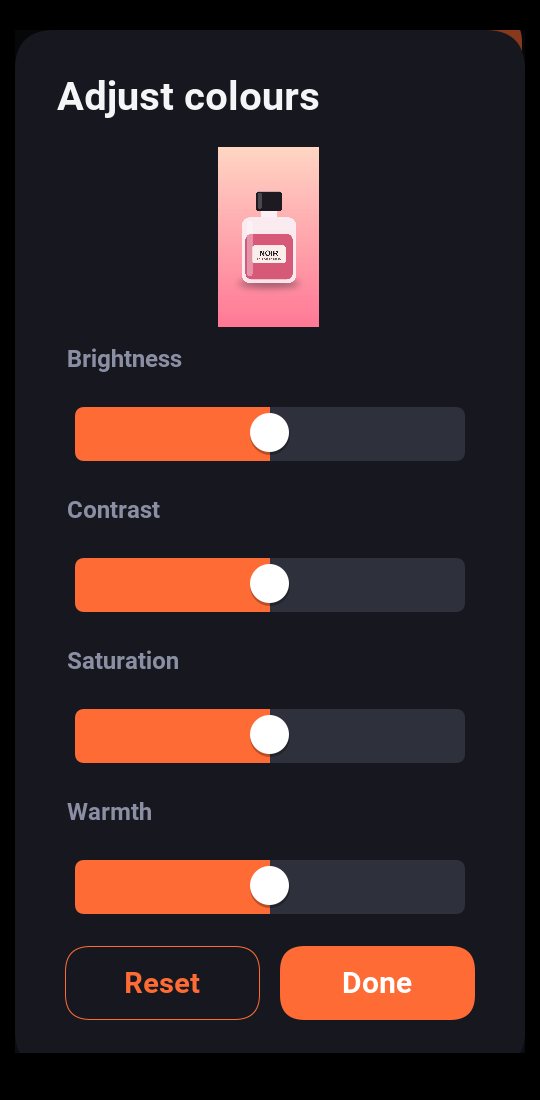
- Adjust colours: brightness, contrast, saturation and warmth sliders, on top of the filter. Reset puts them back.
- Darker edges: Soft or Strong, to draw the eye to the middle.
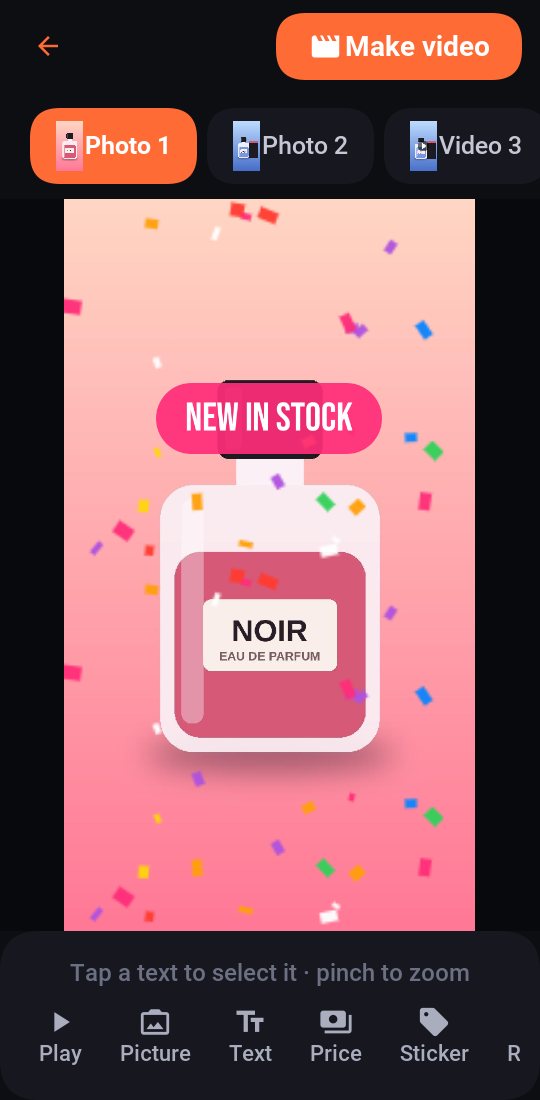
- EffectsPro over the whole video: Cinema (film bars), Light leak, Old film, Scratches (dust and scratches like a worn film print), Retro (video tape), Sparkle, Confetti, Dreamy and Shine (a sweep of light, like a jewellery ad). Pick All clips to put one effect on the whole video, or This clip to give the clip on screen its own effect, so each clip can have a different one.
- On the music's beat: Beat zoomPro punches the picture in on every beat; Beat cuts changes clips on the beat.
Tap a choice to turn it on; tap it again to turn it off. The video shows it at once. The effects and Beat zoom come with Pro; everything else in the Look is free.
17. Shape and size
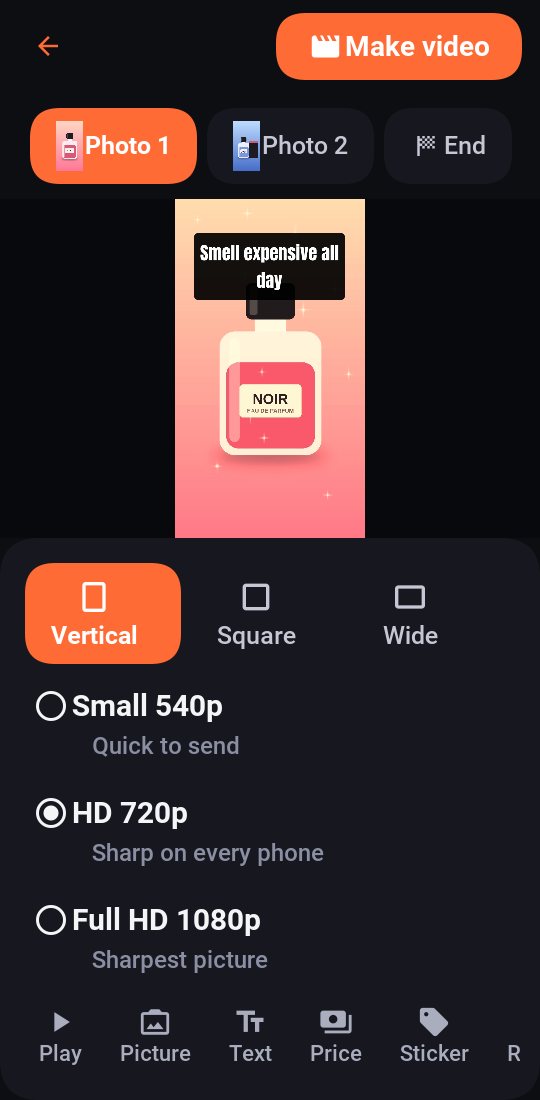
Make the video fit where you post it. Tap Video along the bottom.
- Vertical 9:16: WhatsApp Status, TikTok, Reels and Shorts.
- Square 1:1Pro feed posts and Marketplace.
- Wide 16:9Pro YouTube and Facebook.
The size: HD 720p, sharp on every phone; Full HD 1080pPro for the sharpest picture; or Small 540pPro that's quick to send.
Changing the shape changes the editor's canvas too, so you see where everything lands.
18. Music, song name and voice-over
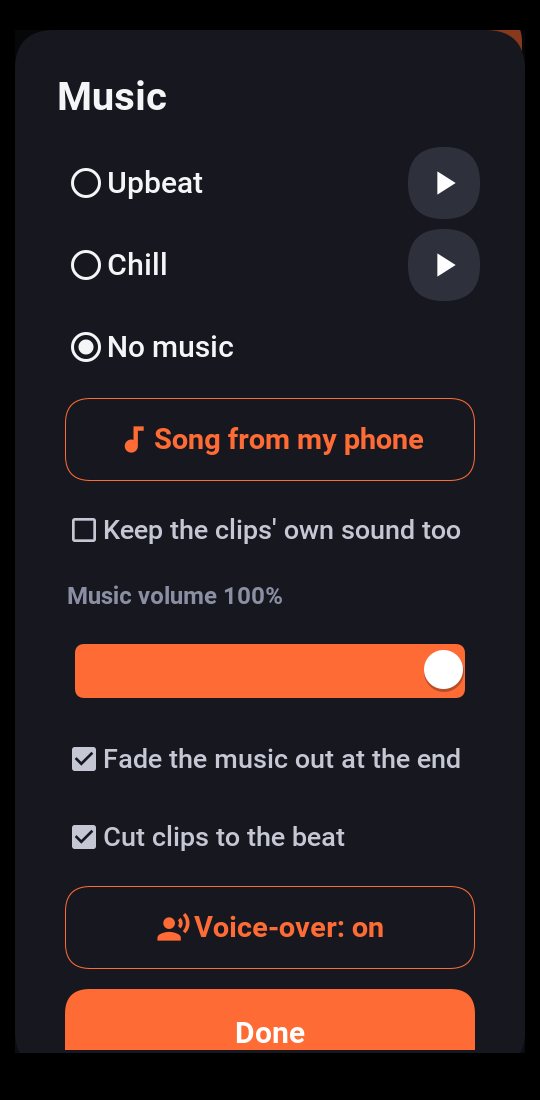
Tap Music along the bottom.
- Pick a built-in track, Upbeat or Chill (tap ▶ to listen), a song from your phone, or no music.
- Keep the clips' own sound too mixes your videos' sound under the music.
- Music volume, and fade the music out at the end.
- Cut clips to the beat makes each clip change on a beat of the music.
- Show the song's name on the video puts a small ♪ credit in the bottom corner while the clips play, like on Reels and TikTok. For a song from your phone it starts with the file's name; type the artist and song as you like.
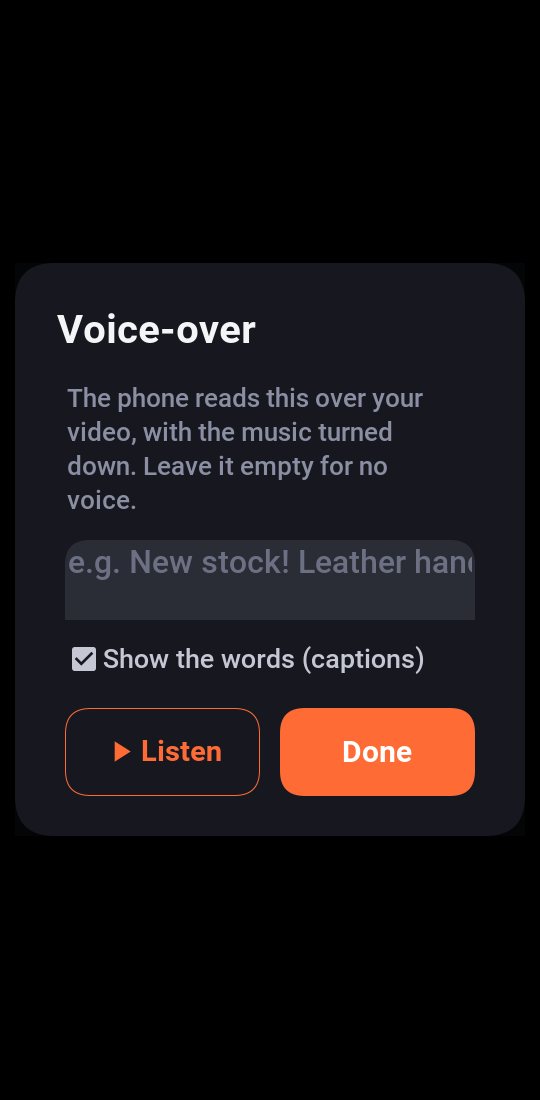
Voice-overPro
- Tap Voice in the editor (or Voice-over in Music).
- Type what to say. The phone reads it over your video, with the music turned down.
- Show the words (captions) puts the spoken words on screen as they're said. Listen plays it first.
The AI writes a voice-over for you. Leave it empty for no voice.
Tip: showing a song's name gives credit, but doesn't give the right to use it. The built-in tracks are safe on every platform.
19. Buyer link and end card
Tell buyers where to go, and let them get there with one scan.
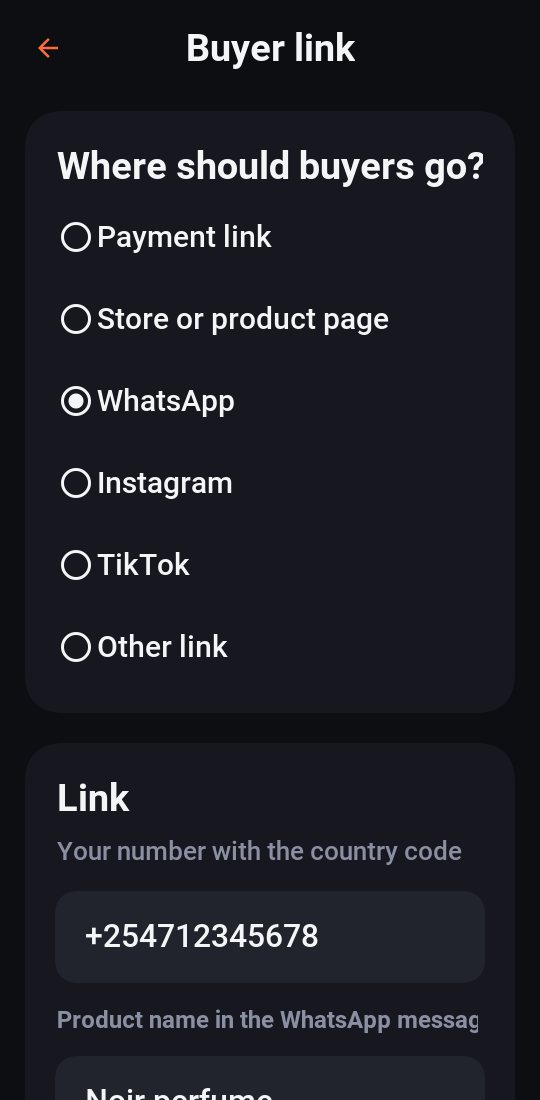
- Tap Link along the bottom.
- Choose where buyers go: Payment link, Store or product page, WhatsApp, Instagram, TikTok or Other link.
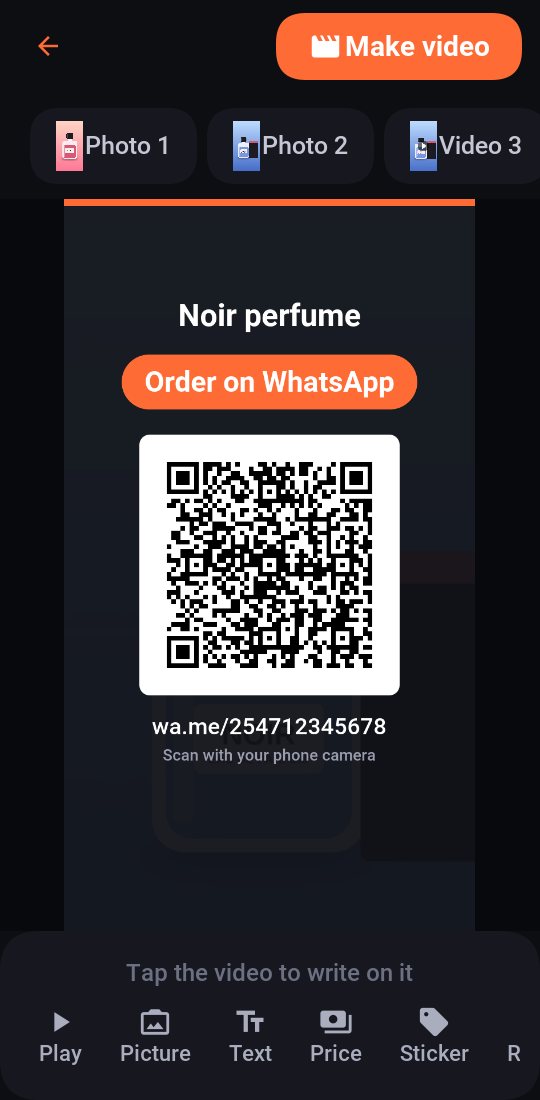
- Type your link, number or handle. For WhatsApp, use your number with the country code; you can add the product's name for the buyer's message.
- Set the call to action (like Order on WhatsApp) and a headline.
Your video then ends with an end card: the headline, the call to action, and a QR code buyers can scan with their camera, with the link written out. See it in the editor under End, where you can add your own texts too.
Tick Also show a small link badge to show the link during the video as well. Remove link takes it off.
20. Brand kit and logo
Your shop's look, ready for every video. Tap Brand along the bottom.
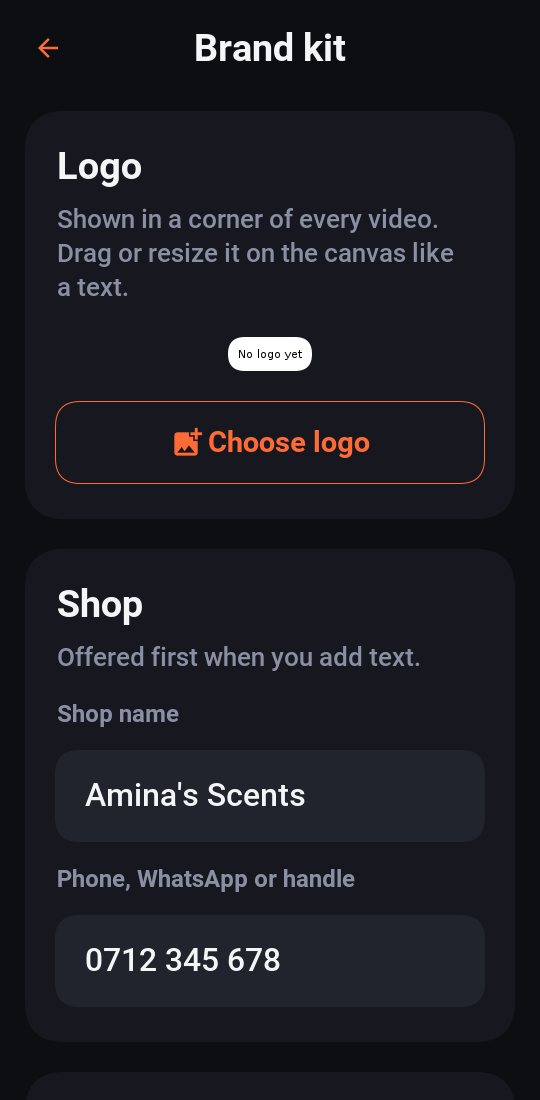
- LogoPro: tap Choose logo. It shows in a corner of every video; drag or resize it in the editor like a text. Untick Show my logo on my videos to hide it.
- Shop: your shop's name and phone, WhatsApp or handle. They're offered first whenever you add a text.
- Colours and font: the colours, font and box shape new texts start with. Use these colours on every text in this video restyles the texts you already have.
21. Make, share and pictures
When it looks right, tap Make video.
- The video is made on your phone; you see how far it has got, and can cancel. If there's a voice-over, it's recorded first.
- Watch the finished video, then tap Share video to send it to WhatsApp Status, TikTok, Instagram, Facebook or anywhere else.
- An AI ad's caption is copied as you share: paste it in your post.
Pictures
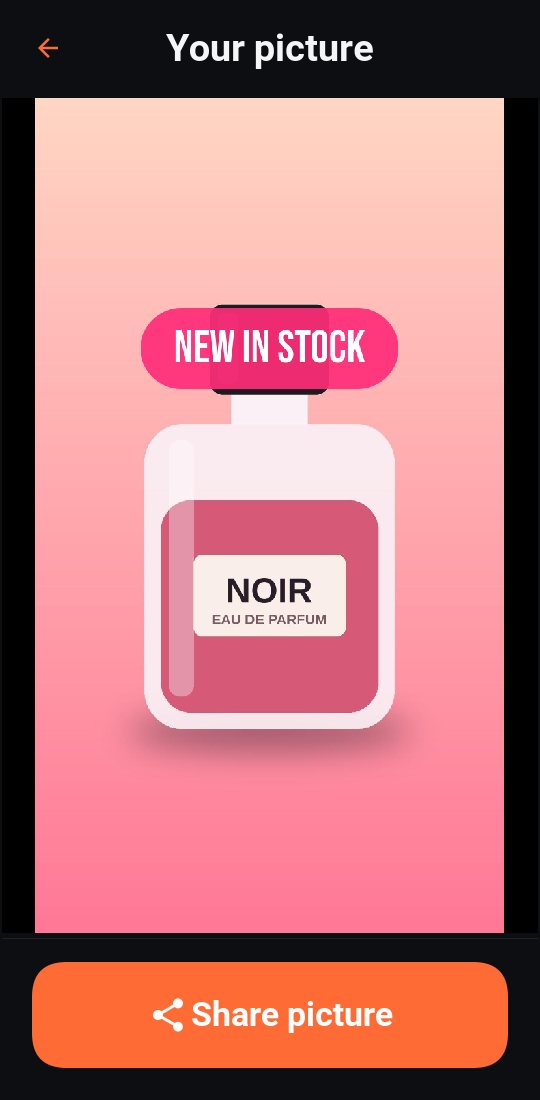
Need a photo instead, for Marketplace, a catalogue or a feed? In the editor, go to the clip you want and tap Picture. You get that moment as a picture, with your texts, price, effects and logo, ready to Share picture.
Tip: free videos carry a small "Made with SellReel" badge. Pro removes it.
22. My videos
Everything you make is kept, to open again, change and make again.
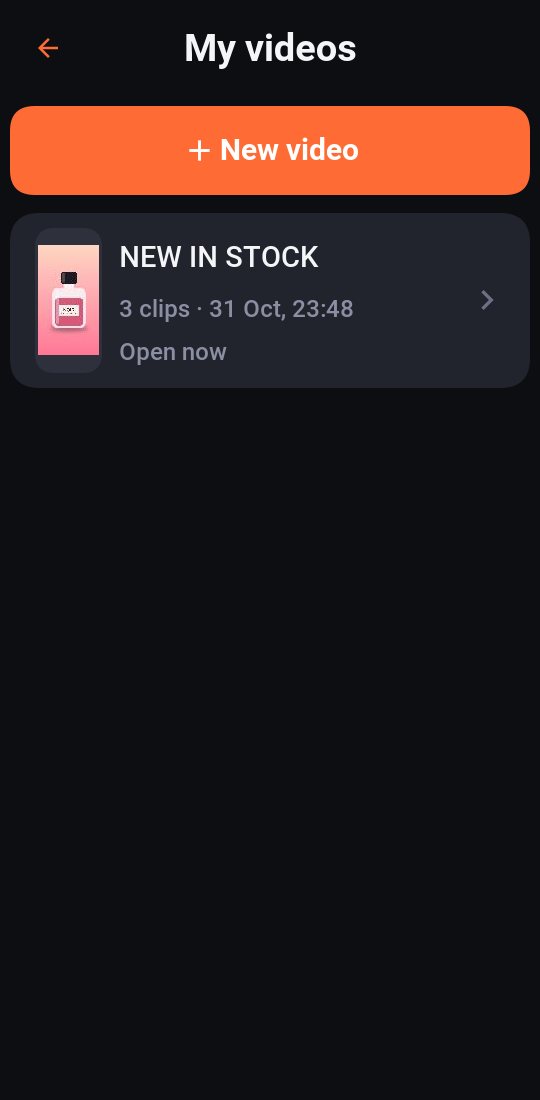
- Tap the folder at the top left of the editor (or My videos in the ⋮ menu).
- Tap a video for its choices: Open (its clips, texts, look and music, just as you left them), Make a copy, Rename or Delete. Videos you already shared aren't affected by deleting.
- New video (here or in the ⋮ menu) starts afresh; your last one stays in the list.
Tip: for a similar video for another product, Make a copy and swap the clips and price. Or save the design as a template.
23. Free and Pro
SellReel is free to use. Pro removes the watermark and adds more of everything.
Pro features show a lock 🔒 or a Pro label. Tapping one shows the plans: weekly, monthly or yearly. Once you subscribe, the locks go away.
- Go Pro is in the ⋮ menu, or tap any locked feature.
- Restore purchases: on a new phone, open the Go Pro screen and tap Restore purchases.
- Have a code? Open the ⋮ menu, tap Redeem a code and enter it to unlock Pro on that phone.
- Cancel anytime from your Google Play or App Store subscriptions; Manage subscription in the app takes you there.
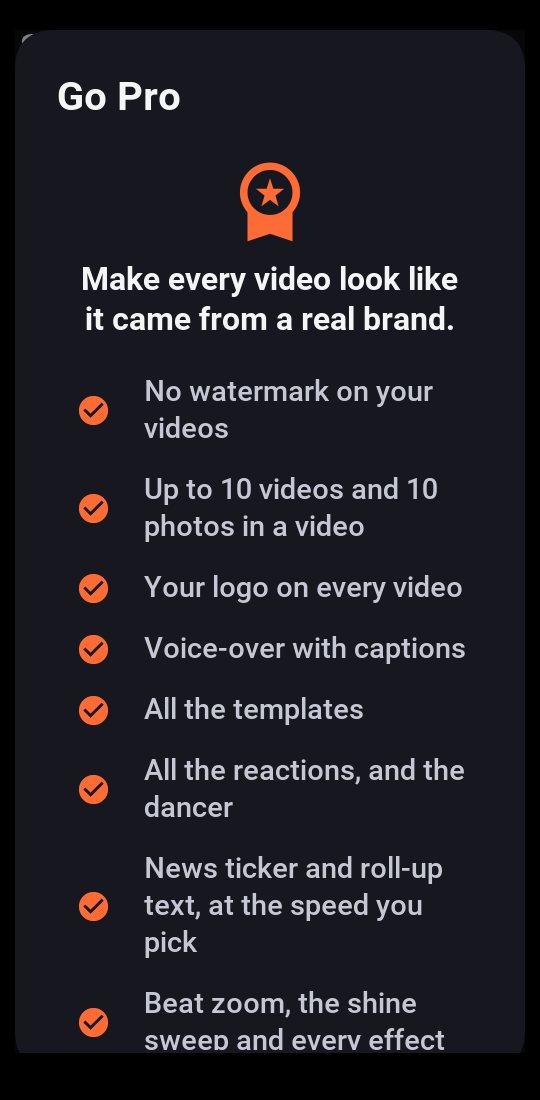
| Feature | Free | Pro |
|---|---|---|
| Clips in a video | 2 videos and 2 photos | 10 videos and 10 photos |
| Watermark | Small "Made with SellReel" badge | None |
| AI-written ads | Your first 3 | Up to 30 a day, with Pro reactions and a ticker |
| Shape and size | Vertical, HD 720p | Square and wide; Full HD 1080p and Small 540p |
| Templates and Quick video looks | 2 | All |
| Effects | No | All of them, plus Beat zoom |
| Reactions | Love, Like, Star, Arrow | All, and the dancer |
| Text motion | Fade, Pop, Rise, Slide in | Also Ticker and Roll up, at the speed you pick |
| Voice-over with captions | No | Yes |
| Your logo on every video | No | Yes |
| Studio photo | No | Yes |
| Make 3 versions of an AI ad | No | Yes |
| New stock video, captions of what's said, song name | Yes | Yes |
24. Help and tips
The ⋮ menu at the top left of the editor has New video, Quick video, Go Pro, My videos, How it works (a quick 3-step tour), this Full guide, Redeem a code, and the Privacy policy.
Tips for videos that sell
- Hook in the first second. Start with your best shot and a bold line: a question, a feeling or the deal.
- Keep it short. 10 to 20 seconds is plenty for Status and TikTok; 2 to 4 seconds per clip.
- Show the price. Buyers decide faster when they see it, and an old price crossed out says "deal".
- Few words, big words. One short line per clip reads in a glance.
- Tell them what to do. End with a buyer link and a clear call to action, like "Order on WhatsApp".
- Post often. With a saved template, a new product's video takes under a minute.
If something isn't right
- The AI can't write the ad: check your internet connection and try again in a minute.
- A video won't make: try a smaller size or fewer clips. SellReel sends a technical report (no texts or pictures) so it can be fixed.
- No captions after listening: check that the phone's language is one it understands offline, and that the video has someone talking. Listen again tries once more.
- Studio can't find the product: use a photo with the product on its own, in the middle. On Android, keep the internet on the first time while the phone gets Google's cut-out tool.
- Pro isn't showing after buying: open the Go Pro screen and tap Restore purchases.